Docs
Tools
Working with Sym
Selection
Choosing shapes is how you tell a tool what to work on. Style, Transform and Replace all narrow to the selection when there is one.
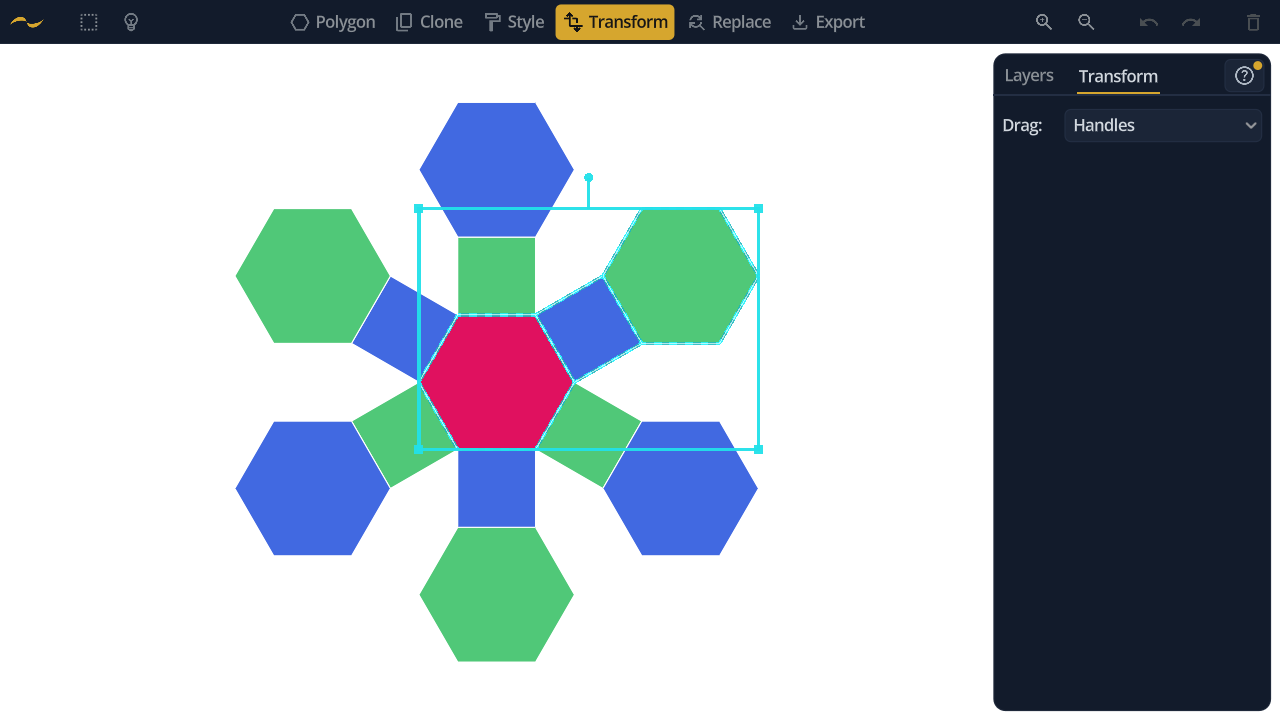
Selecting by Hand
- Marquee Selection — drag a rectangle across the shapes you want.
- Lasso Selection — draw a freehand outline for awkward groups.
- Shift+click — add or remove one shape at a time, and it works while marquee or lasso is armed.
- Ctrl+A — select everything on the active layer.
- Escape — clear the selection.
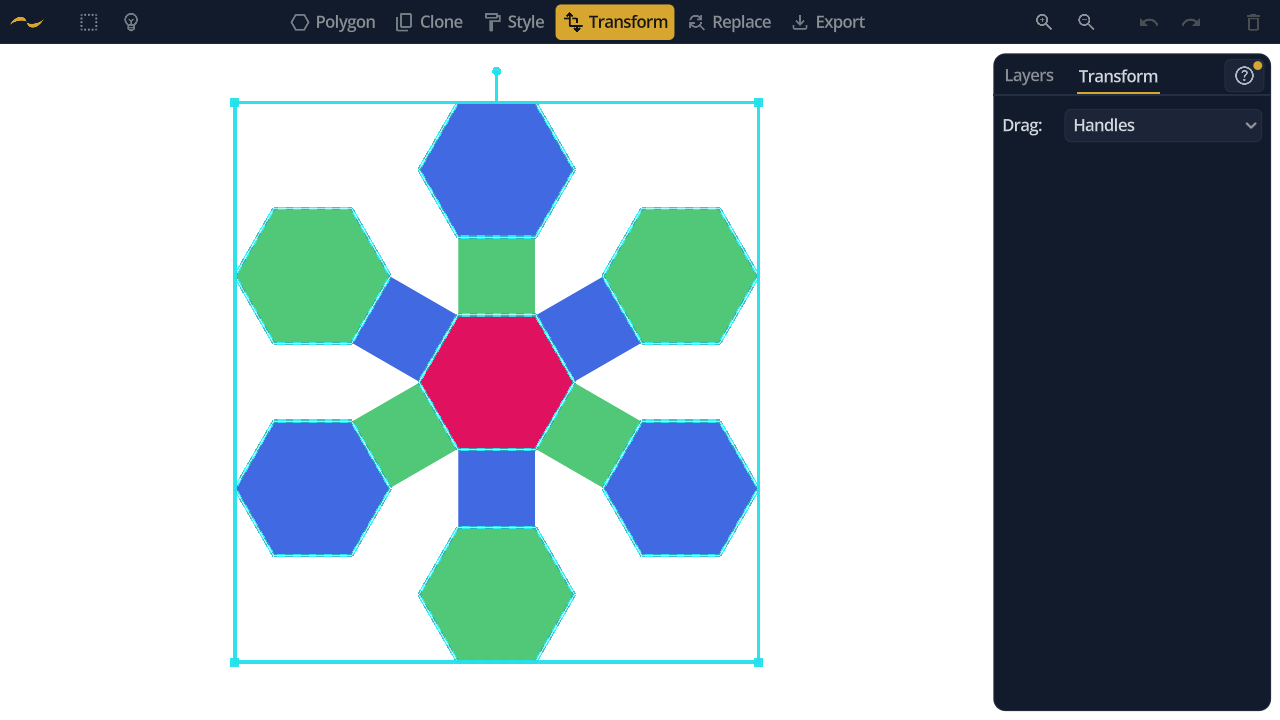
Select All of Same Type
Select one shape and extend it to every shape of the same kind. Selecting a hexagon and using this picks up every hexagon on the layer, leaving squares alone — the quick way to restyle one shape family across a pattern.
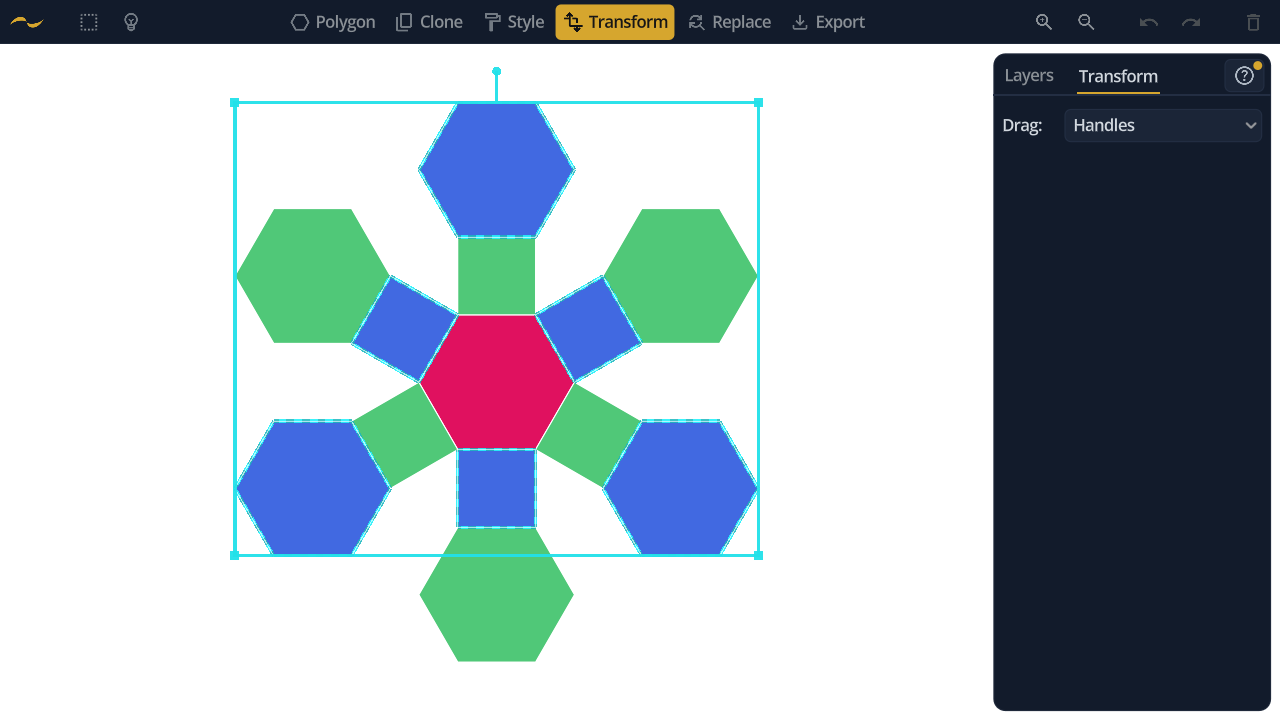
Select All of Same Style
The same idea by appearance rather than shape: extend the selection to everything sharing the current selection's style, whatever its geometry. Pair it with the Style tool to recolour a whole motif at once.
Working with a Selection
- Delete or Backspace — remove the selected shapes.
- Ctrl+C / Ctrl+V — copy and paste a cluster. Pasted shapes arrive selected with the Transform tool active, ready to place.
- Extract Selection to New Layer — move the selection onto a new layer.
- Copy Selection to New Layer — the same, but leaving the originals in place.
Selection is per-layer: Ctrl+A and the extend actions work within the active layer, so a layer you aren't editing can't be disturbed by accident.