Tools
Working with Sym
Polygon Tool
Add polygon shapes to the canvas from the polygon palette.
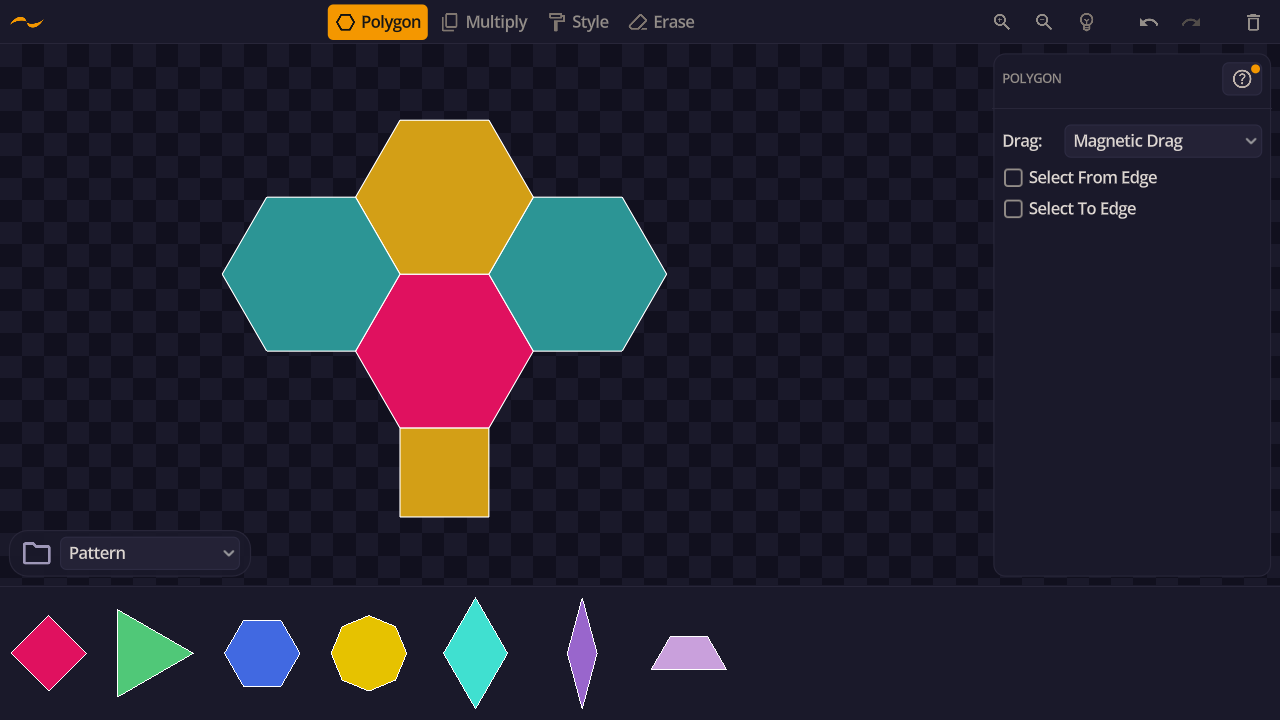
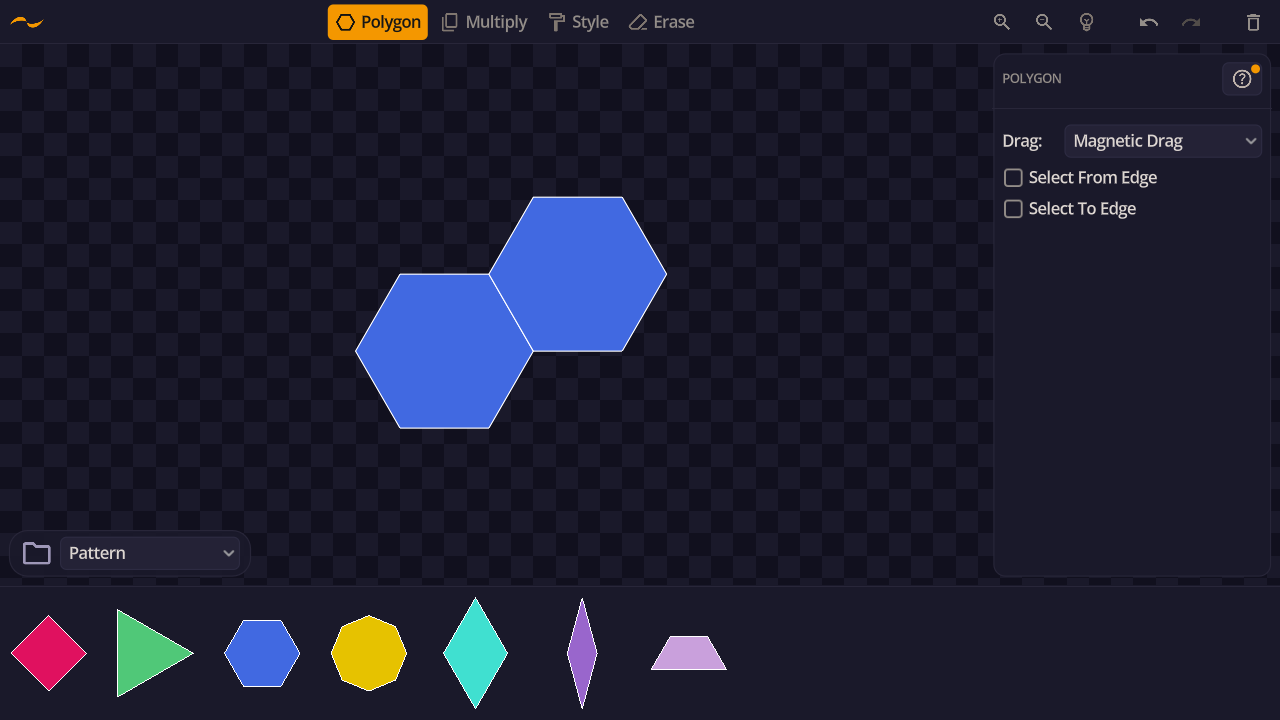
In Magnetic Drag, dragging a polygon from the polygon palette snaps it to the nearest edge on the canvas.
1. Start with a polygon on the canvas.
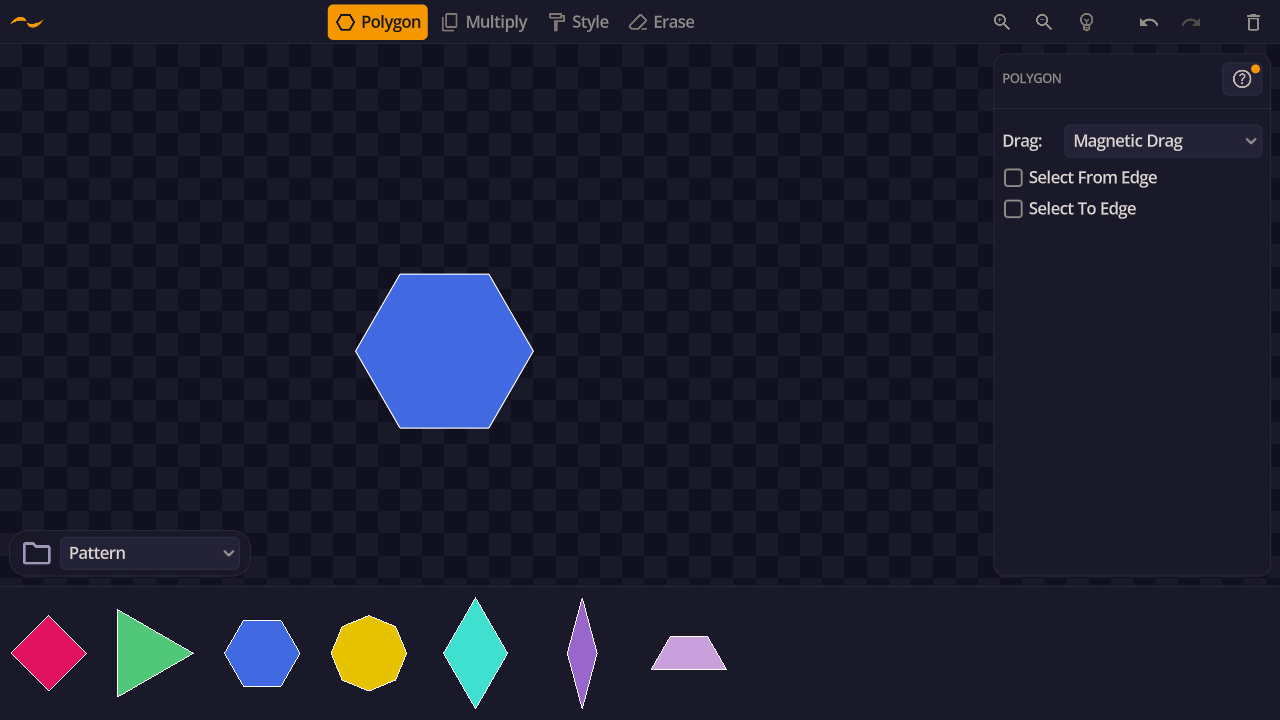
2. Pick the polygon by an edge in the polygon palette.
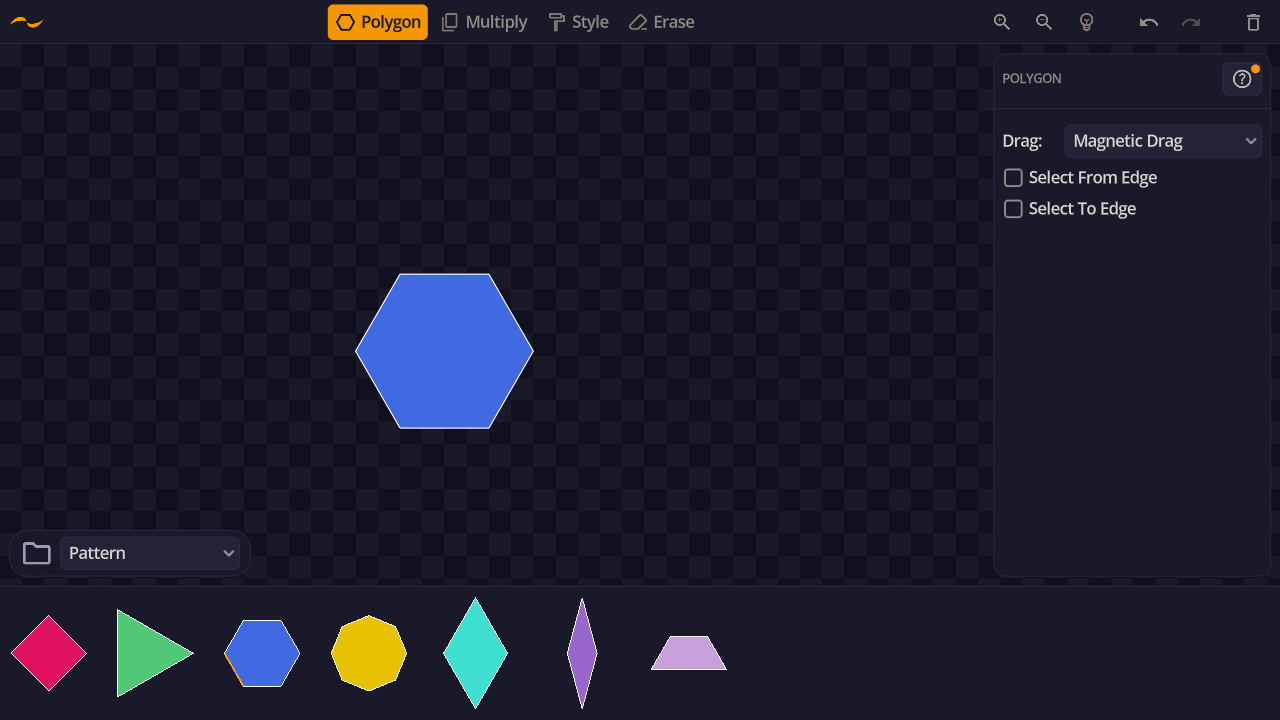
3. Drag the polygon toward an edge on the canvas.
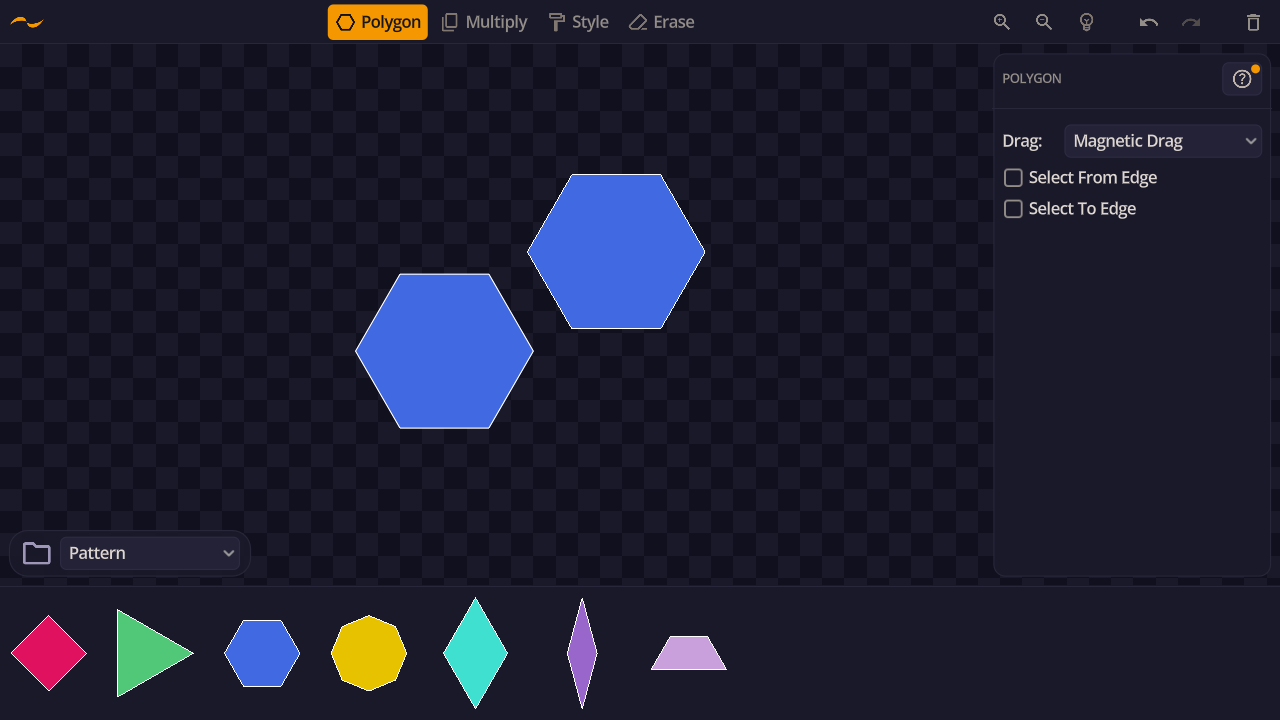
4. Release to snap it into place.
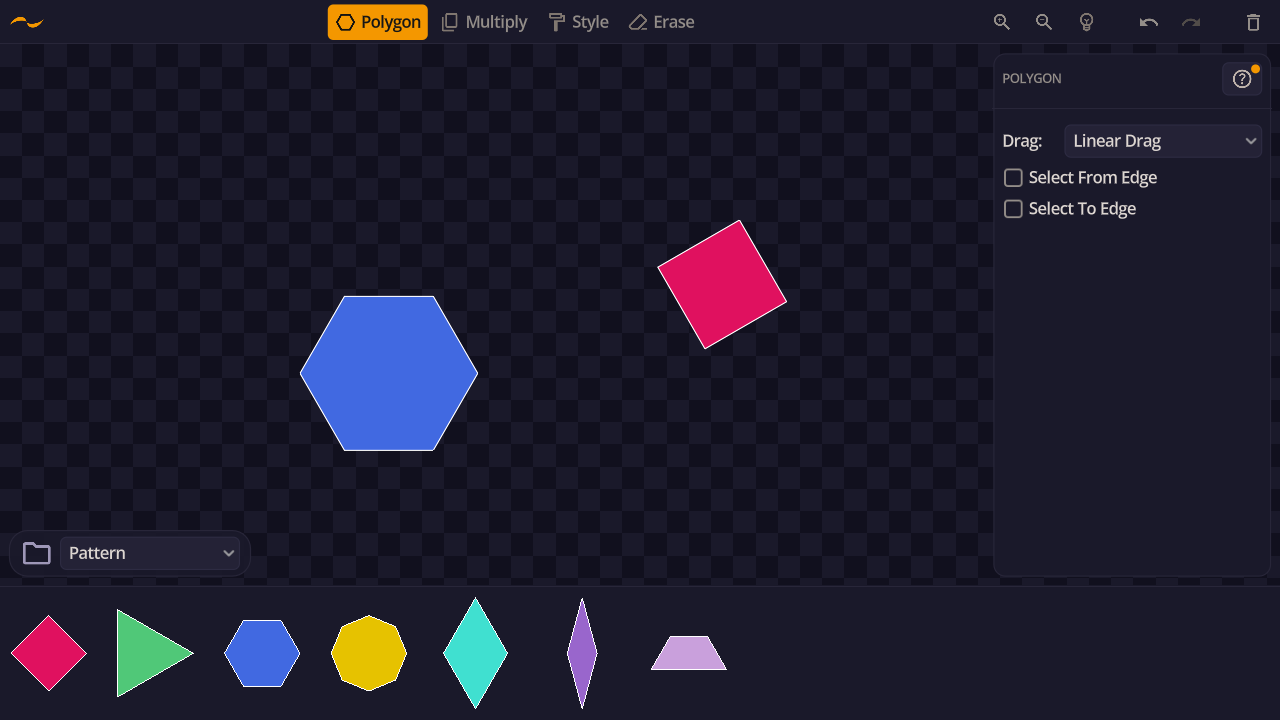
In Linear Drag, polygons follow the cursor freely and can be placed anywhere on the canvas. While dragging you can also scale the polygon with the mouse wheel and rotate it by holding the right mouse button.
Drag a polygon out of the palette — it follows the cursor with no snapping.
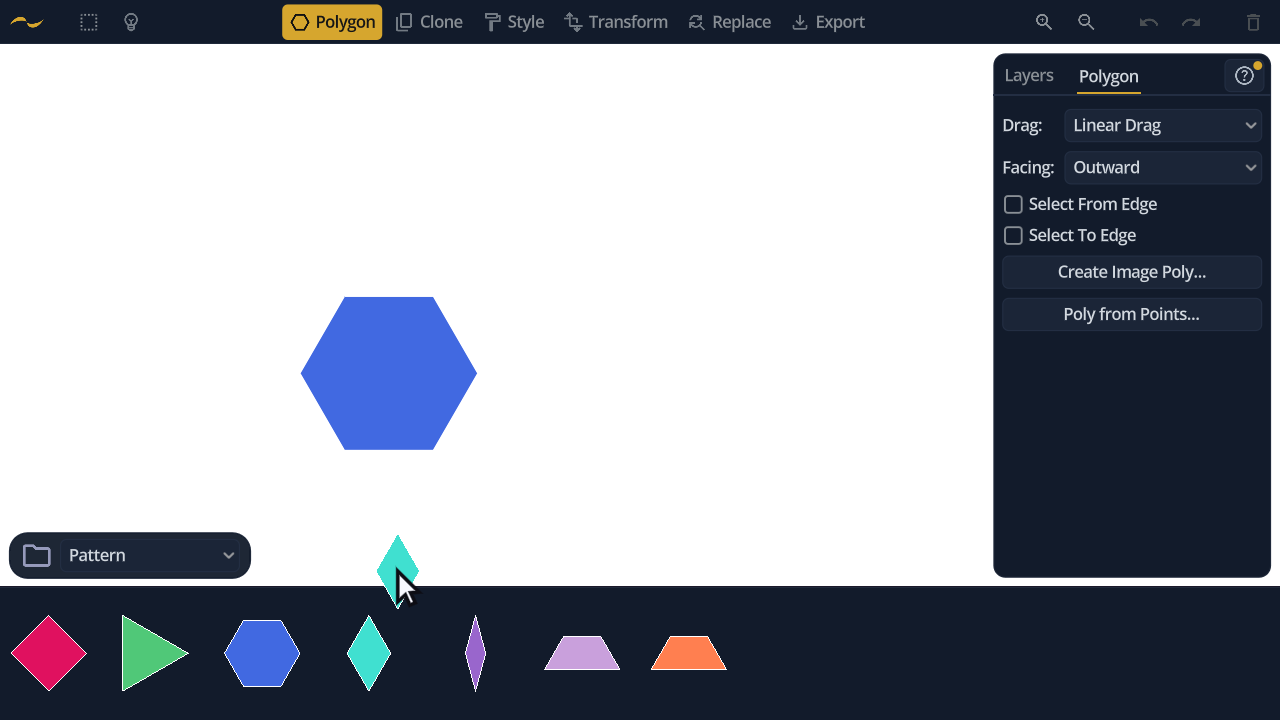
Release to place it wherever you like.
When a polygon snaps to an edge there are two shapes that fit it — one on each side. Facing decides which you get.
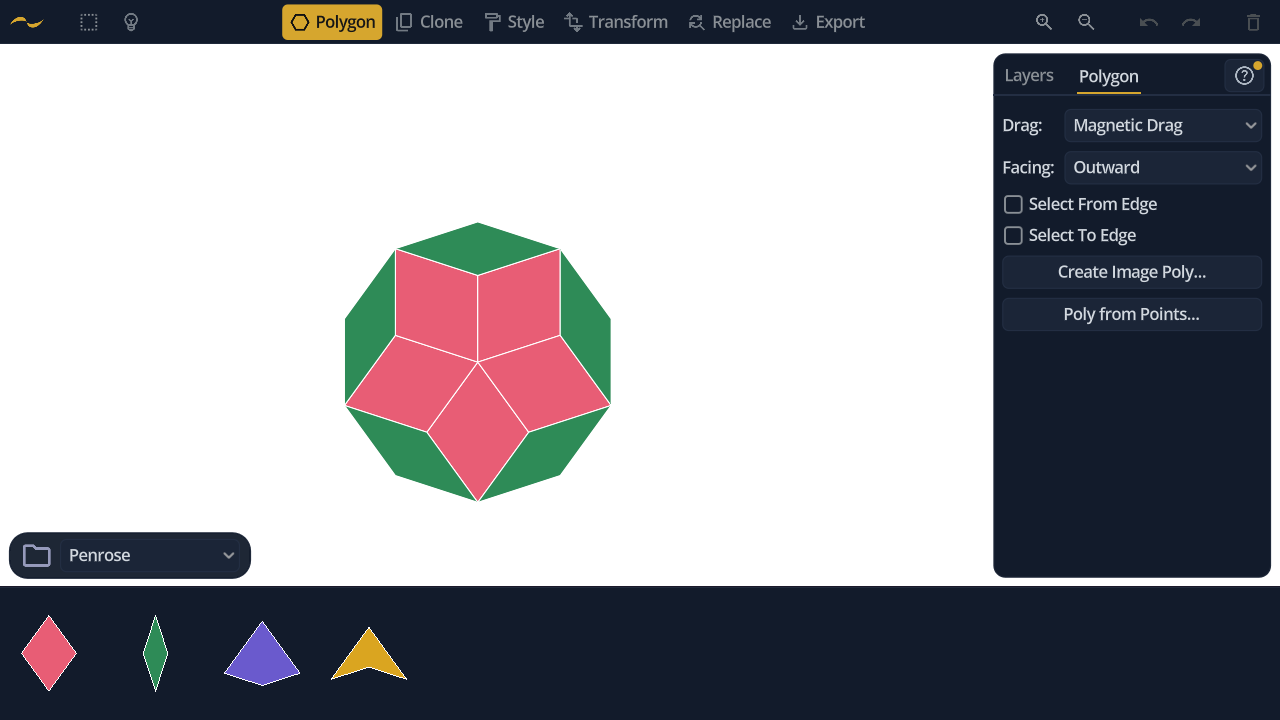
Outward puts the new shape on the far side of the edge, growing the pattern away from what's already there.
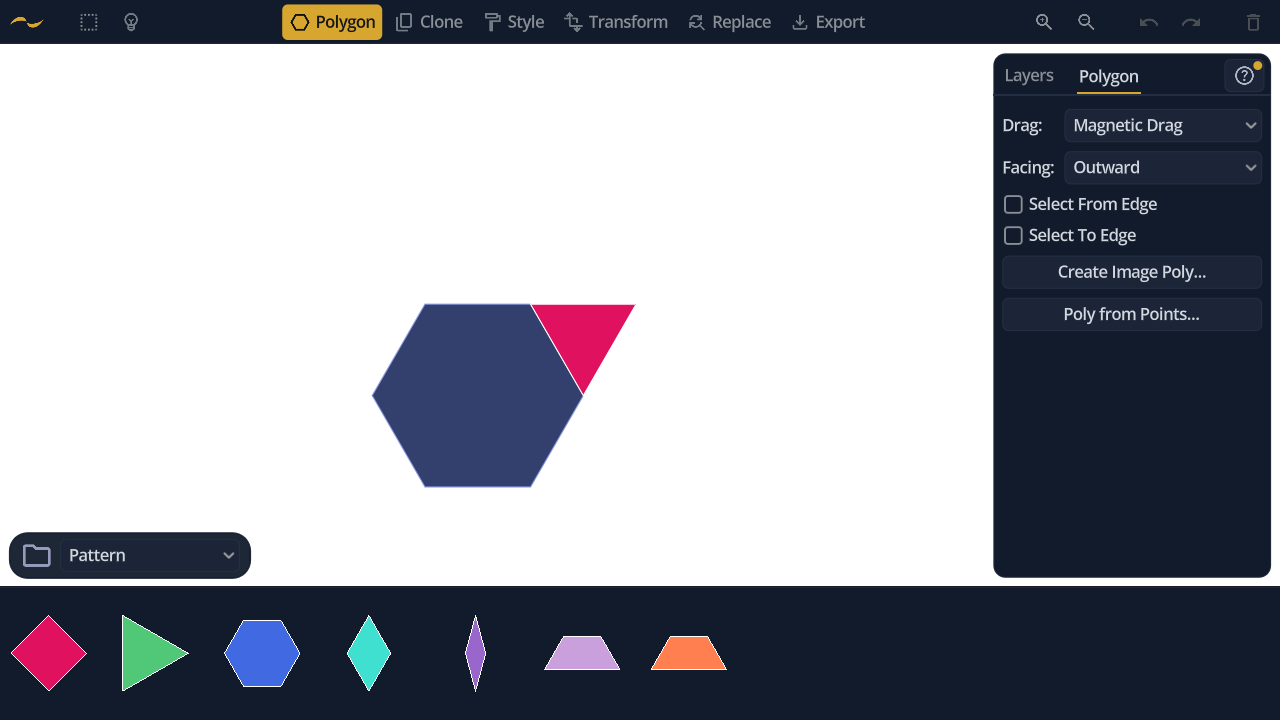
Inward folds it back over the shape instead — useful for filling a shape in rather than extending it.
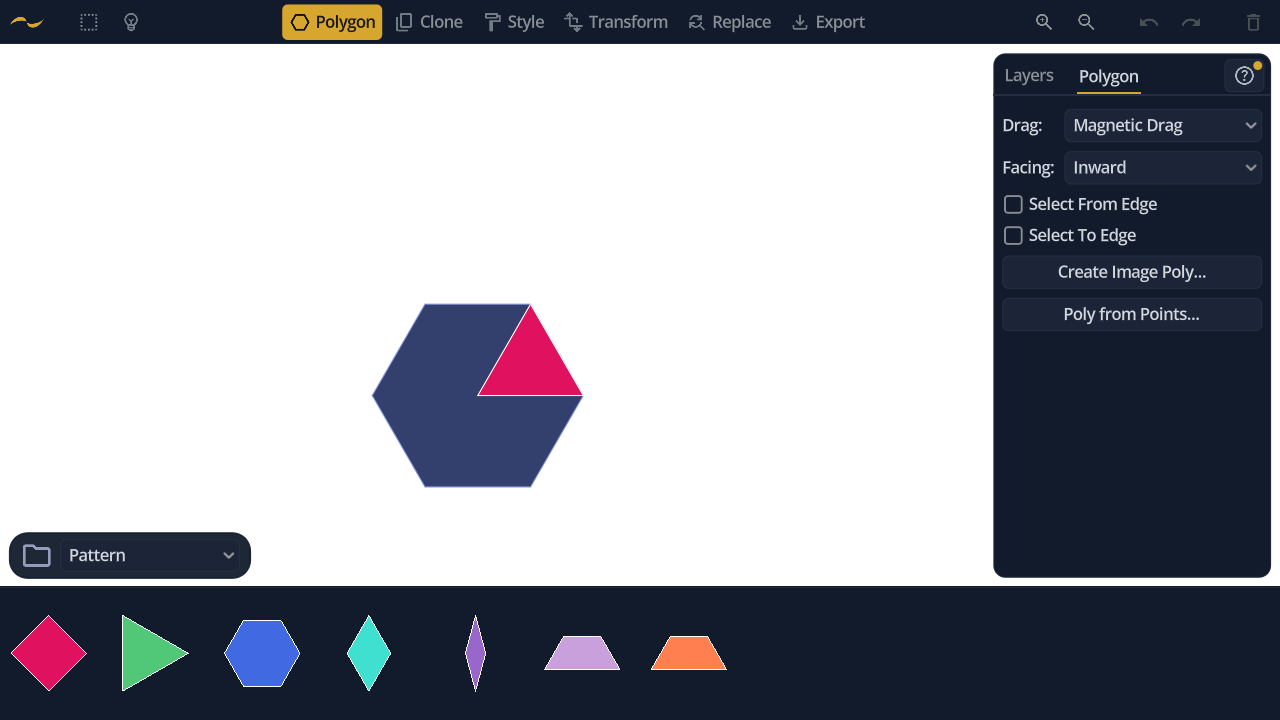
The palette is grouped into sets, each holding shapes that tile together — Penrose, Girih, Cairo, Archimedean and more. Switch sets from the pill beneath the canvas to swap the whole palette at once.
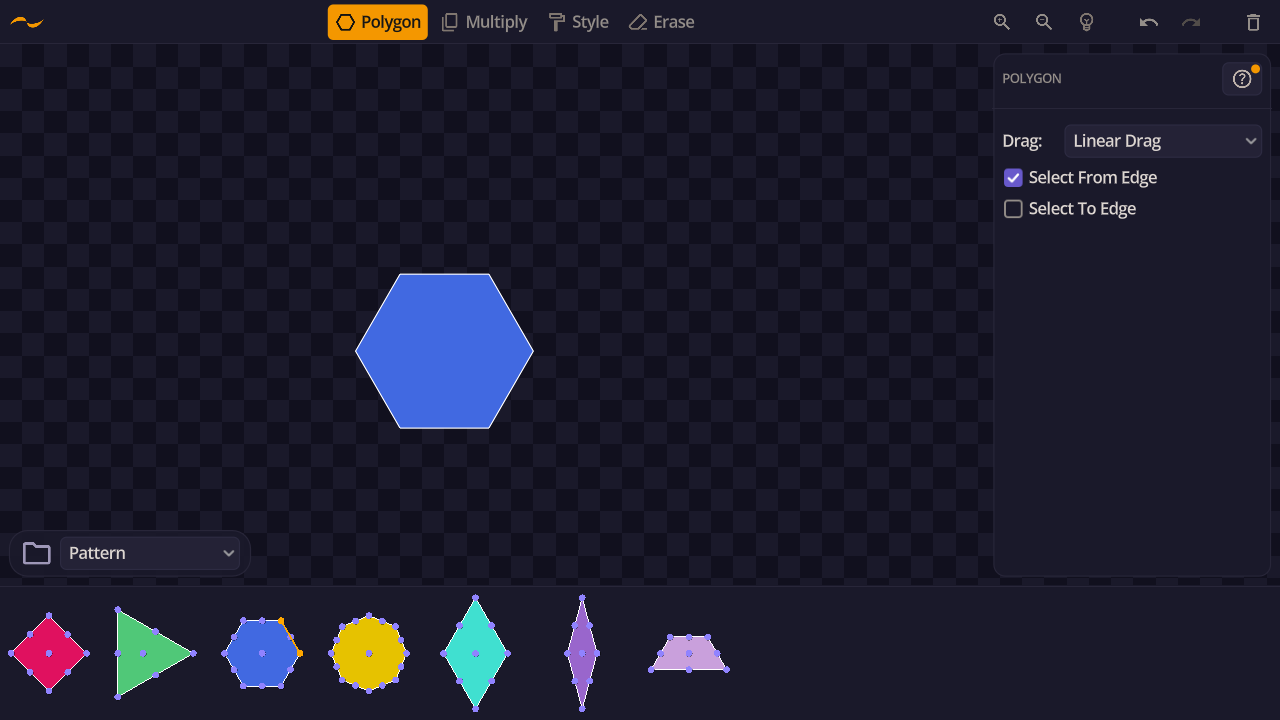
Marks every card in the polygon palette with clickable points — one on each vertex, one at the midpoint of each edge, and one at the centre. Click two of them and the segment between them becomes the edge the polygon is dragged by, so that is the edge Magnetic Drag snaps to the canvas. The two points need not be an existing edge: any chord works, including one cutting straight across the shape. With nothing selected the polygon is dragged by whichever edge you picked the card up closest to.
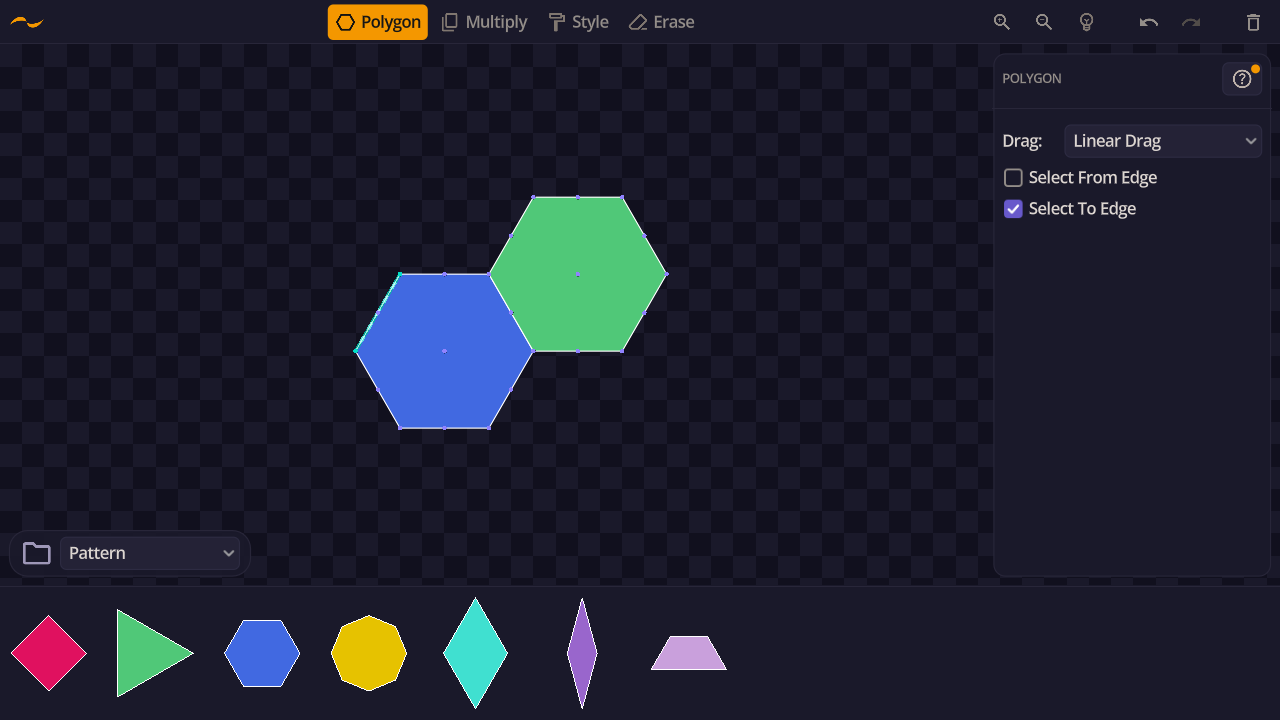
Highlights points on polygons already on the canvas. Click two points to choose the target edge the dragged polygon will snap to.
Two buttons in this panel author new shapes rather than placing existing ones: Poly from Points traces a shape from points on the canvas, and Create Image Poly traces one from a reference image.