Tools
Working with Sym
Replace Tool
Teach Sym that one shape becomes an arrangement of others, then apply it everywhere that shape appears.
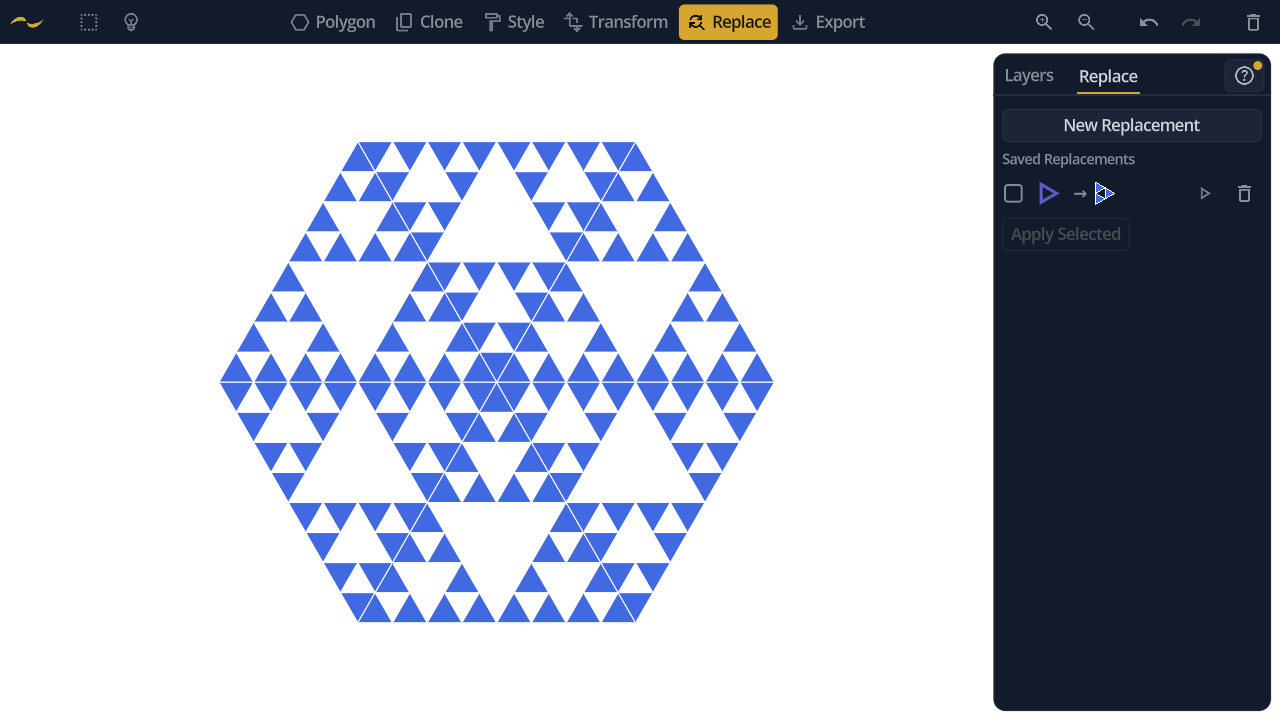
Replace is how a simple tiling becomes a detailed one. Build a pattern out of plain shapes, define what each shape should turn into, and apply the replacement to elaborate the whole composition at once — as many times over as you like.
A replacement is authored the opposite way round from how it reads: the canvas holds the result, and the shape it stands for is dragged in on top afterwards.
1. Build the arrangement on the canvas, out of ordinary shapes. Here three half-size triangles sit on the corners of a bigger one — a single round of the Sierpinski subdivision.
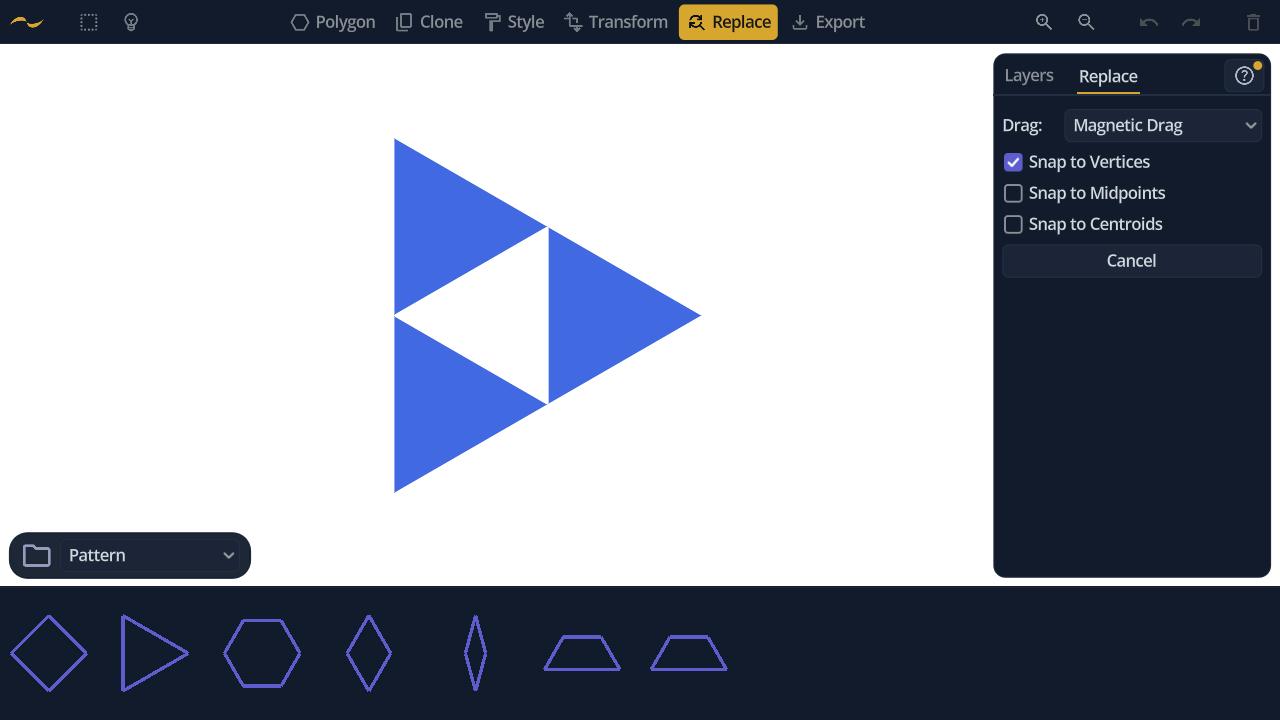
2. Press New Replacement and drag the shape you want to replace out of the palette. It arrives as a ghost you can move, rescale and rotate over the arrangement — where you leave it is what anchors the two together.
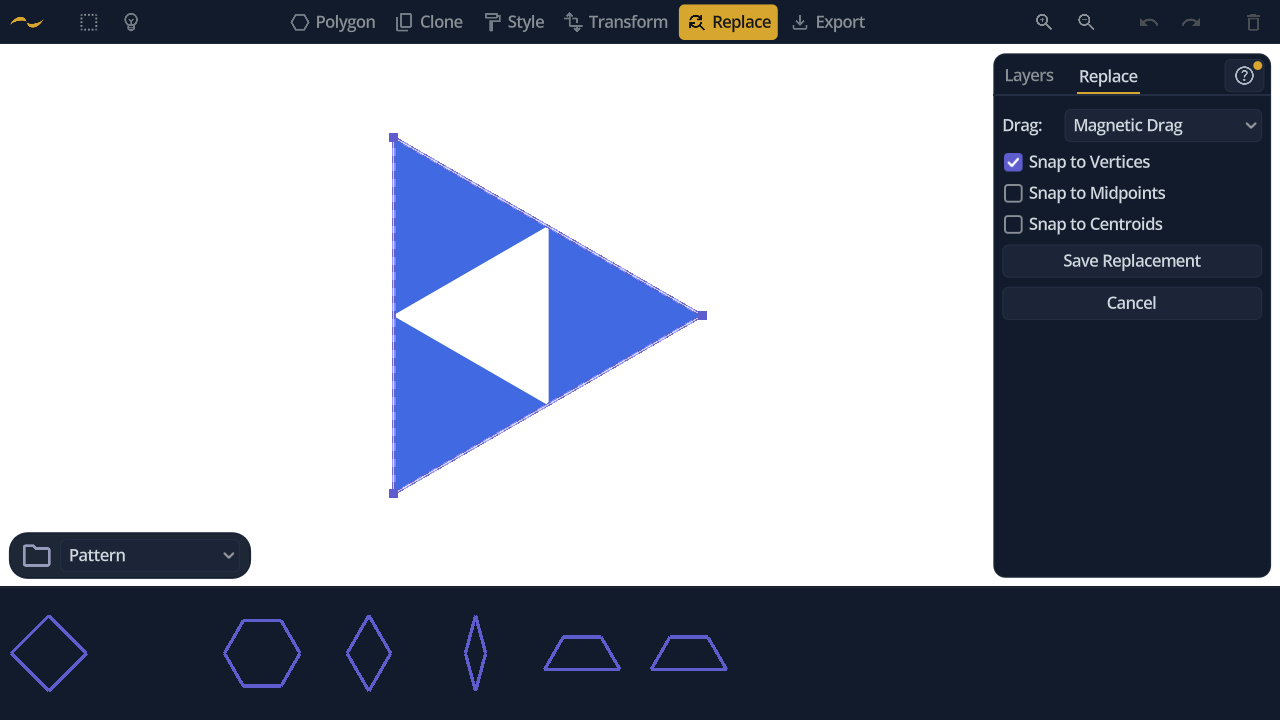
3. Press Save Replacement. The panel now lists a triangle that becomes three triangles, and the arrangement has done its job — clear it away and build the pattern you actually want. Six of those same triangles fan into a hexagon.
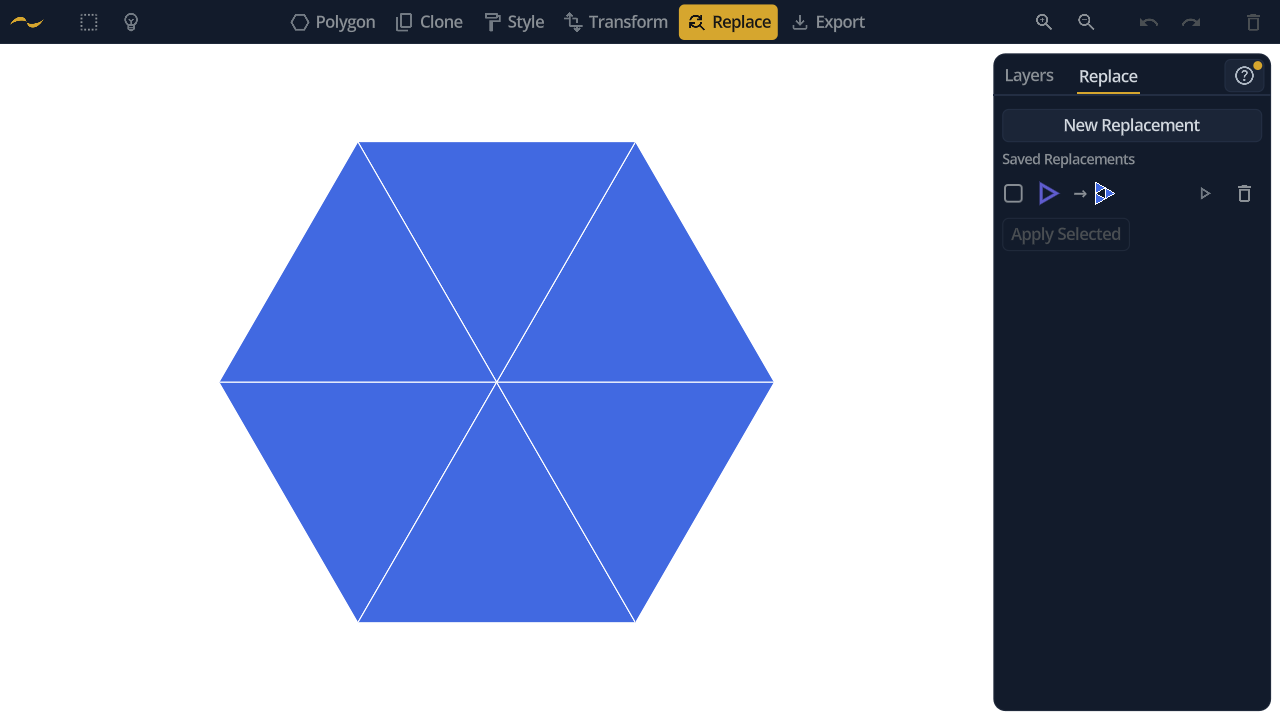
4. Apply it. All six triangles become three each, every one sized and turned to match the triangle it replaced.
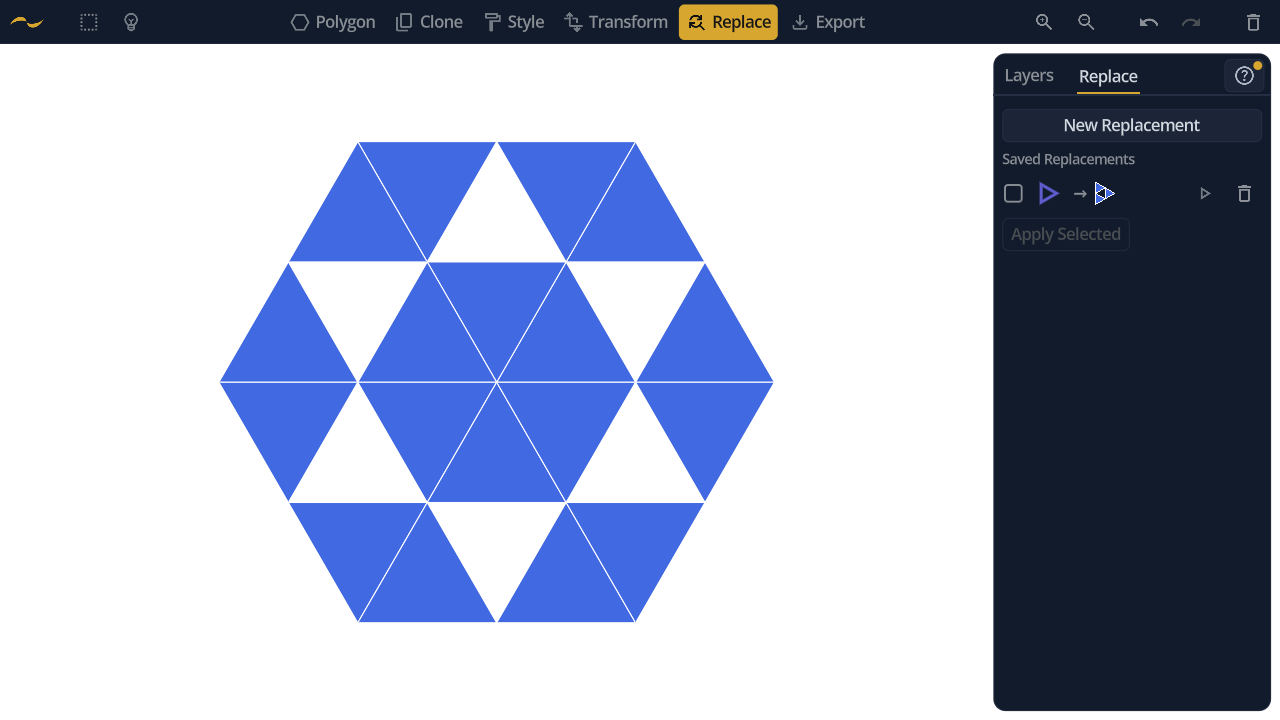
The arrangement is stored relative to the source shape, not in canvas coordinates, so one replacement fits every copy of that shape wherever it sits and however it is rotated or scaled.
This arrangement is built from the source shape itself, so what comes out of a pass is exactly what the next pass matches. Applying it a second time subdivides all eighteen triangles again.
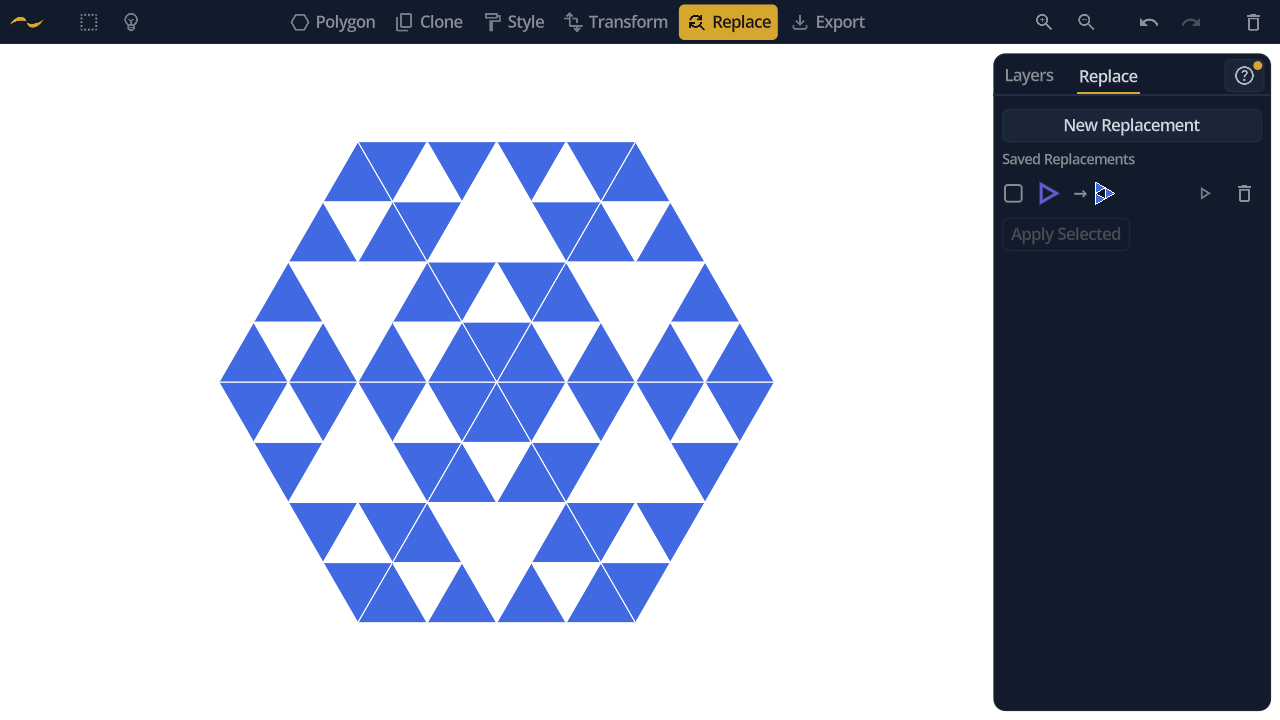
Six triangles, then eighteen, then fifty-four. The image at the top of this page is one more pass again — a hundred and sixty-two triangles, from six shapes and one saved replacement.
Dragging a corner of the ghost rescales and rotates it at once, and releasing that corner near a point on the arrangement lands it there exactly. Three kinds of point can be snapped to, each switched on independently:
- Snap to Vertices — the shapes' corners.
- Snap to Midpoints — the centre of each edge.
- Snap to Centroids — each shape's centre.
A snapped corner is pinned, and the next corner you drag pivots around it — so two snaps place the ghost exactly, which is how the triangle above comes to sit precisely on the three it contains.
Each saved replacement shows as a before-and-after row: the source shape's outline, an arrow, then the arrangement it produces. Apply one from its own button, or check several and apply them together.
When two checked replacements match the same shape, only one can win — Sym flags the clash and takes the higher one, so drag rows to reorder them and decide which that is.
Replacements are kept separately from your artwork, so they persist between sessions and are not part of undo. Deleting one is permanent and is always confirmed.
Applying a replacement normally sweeps the whole canvas. Make a selection first and it is limited to the shapes you picked, so one part of a pattern can be taken deeper than the rest.
Either way the whole sweep is a single undoable step, so you can try a replacement, look at it, and undo it without unpicking shape by shape.